

How to Use Figma Templates to Speed Up Your Web Design Workflow
Dive deep into our recent blog post featuring expert insights and valuable information for SaaS enthusiasts.
Let's be honest. That blank Figma canvas at 9 AM on Monday morning? It's intimidating. You've got a client deadline looming, a mental list of components to build, and somewhere in the back of your mind, you're wondering if you'll ever stop recreating the same navigation bar for the hundredth time.
I've been there. Probably more times than I'd like to admit. And after years of grinding through projects the "pure" way—convincing myself that real designers don't need shortcuts—I finally accepted something that changed everything: templates aren't cheating. They're just smart.
The Real Cost of Designing From Scratch
Here's what nobody talks about when they romanticize custom design work. Every website needs the same foundational elements. Headers, footers, hero sections, feature grids, testimonial blocks, pricing tables. You know the list. Building these from scratch every single time isn't creative expression. It's repetitive labor that burns hours you could spend on work that actually matters.
Think about your last three projects. How many hours did you spend on structural elements versus the unique, creative decisions that defined each brand? If you're honest, the ratio probably isn't flattering. Templates flip that equation by handling the structural heavy lifting so you can focus on differentiation.
What Makes a Figma Template Actually Useful
Not all templates deserve your time. The difference between a helpful starting point and a frustrating constraint comes down to a few critical factors. Good templates use proper auto-layout throughout, which means resizing and adapting content won't break everything. They organize components logically with clear naming conventions. They provide multiple variations of common sections rather than one rigid option.
Bad templates? They look pretty in the preview but fall apart the moment you try to swap an image or change a headline length. Before committing to any template library, open the Figma file and dig into the structure. If the layers panel looks like chaos, move on.
Integrating Templates Without Losing Your Identity
The biggest fear designers have about templates is the "cookie-cutter" accusation. Will clients recognize the structure? Will your portfolio look generic? These concerns are valid but overblown when you approach templates correctly.
Templates are raw materials, not finished products. A professional chef doesn't grow their own vegetables from seed for every dish. They source quality ingredients and transform them through skill and creativity. Your job is the same. Start with solid structural foundations, then layer in the brand-specific typography, color systems, imagery, and micro-interactions that make each project unique.
The transformation happens in the details. Custom icon styles, thoughtful animation curves, intentional photography direction, distinctive typographic pairings. These elements define a brand's visual identity far more than whether the feature section uses a three-column or four-column grid.
A Practical Customization Workflow
When I work with templates now, I follow a consistent process that maximizes efficiency without sacrificing quality.
First, I strip the template to its skeleton. Remove all the placeholder images, reset colors to neutral grays, and delete any decorative elements. This helps me see the pure structure without being influenced by the template's original aesthetic direction.
Next, I apply the project's design tokens systematically. Typography scales, color variables, spacing values. Figma's variable system makes this fast, especially with well-built templates that use tokens properly from the start.
Then comes the creative layer. I add custom imagery, adjust component compositions, introduce brand-specific graphic elements, and refine spacing relationships. By this point, the template's DNA is barely visible. What remains is a project that leveraged smart foundations while delivering completely custom results.
The Productivity Math You Can't Ignore
Let's talk numbers. A typical marketing website with 8-10 pages takes most designers anywhere from 40-60 hours when built from scratch. That includes wireframing, high-fidelity design, component creation, responsive adaptations, and revision cycles.
Starting with a quality template library? The same deliverable drops to 15-25 hours. Not because you're cutting corners, but because you're eliminating redundant structural decisions. Those saved hours translate directly into either more projects per month or deeper creative exploration on each project. Both options are better than grinding through repetitive layout work.
Choosing the Right Template Library
The template market is flooded, which makes selection overwhelming. Look for libraries that specialize in web design specifically rather than general-purpose UI kits. Web templates understand the unique requirements of marketing sites, from scroll-based layouts to conversion-focused section sequencing.
Volume matters less than quality and variety. A library with 50 thoughtfully designed templates across different industries serves you better than 500 variations of the same generic layout. Check if templates include multiple page types beyond just homepages. About pages, pricing pages, blog layouts, and contact sections appear in nearly every project.
Moving Past the Template Stigma
There's still a strange pride some designers take in avoiding templates entirely. It's an outdated mindset rooted in the idea that efficient workflows somehow diminish creative legitimacy. The best designers I know use templates liberally. They also produce more creative work, serve more clients, and stress less about deadlines.
The question isn't whether to use templates. It's how to use them intelligently without becoming dependent or lazy. Templates handle the predictable. Your expertise handles everything else.
Frequently Asked Questions
Will clients know I used a template?
Not if you customize properly. Clients care about results that represent their brand effectively. They don't audit your process. With proper customization, the template foundation becomes invisible.
Do templates limit creativity?
Only if you let them. Templates establish structure, not aesthetic direction. Every creative decision about color, typography, imagery, and animation remains entirely yours.
How do I choose between different templates for the same project?
Match structural complexity to content requirements. A template with extensive feature sections suits product-heavy sites. A portfolio-focused template works better for case study presentations.
Should I tell clients I use templates?
There's no obligation to detail your tools. However, if asked, be honest. Using professional resources efficiently is a business strength, not a weakness.
How often should I update my template library?
Annually at a minimum. Design patterns evolve, and templates built around outdated conventions can date your work unnecessarily.
Ready to transform your design workflow? Explore Wonderlist's collection of 127 premium Figma website templates, built with proper auto-layout, organized components, and the structural flexibility that makes customization seamless.
Related Reading
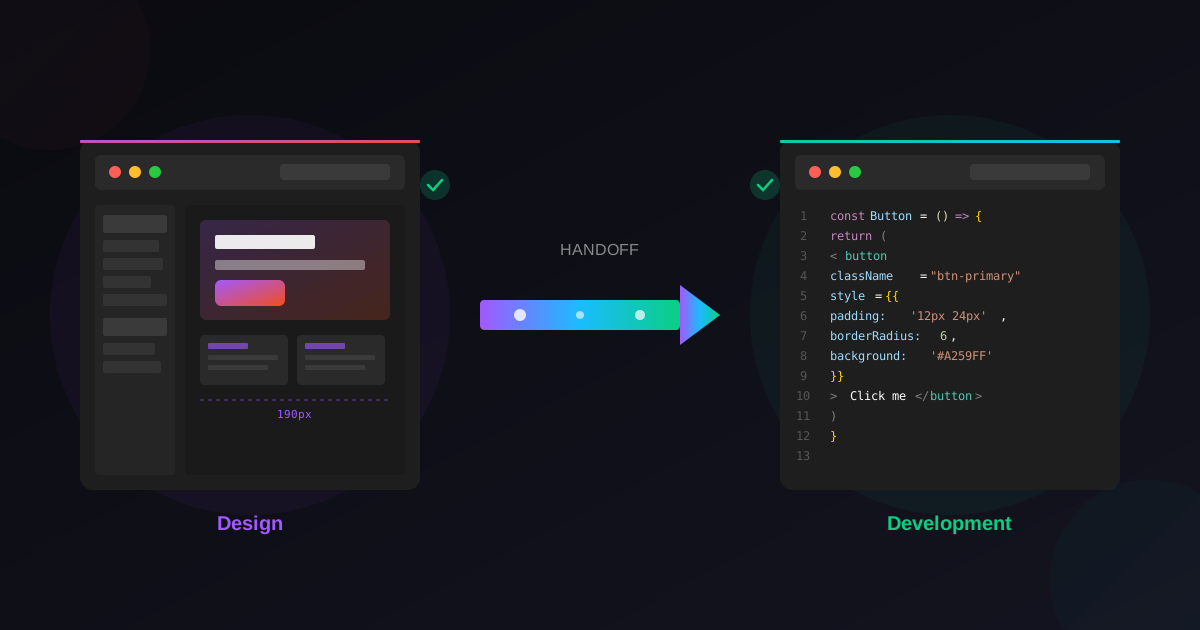
See templates in action with our roundup of 9 free Figma portfolio templates, pair them with essential Figma plugins for 2026, and prep the file for developers with our Figma-to-development handoff guide.
Latest Insights
Other Insights
Dive into our blog to discover insightful articles covering a variety of topics tailored for SaaS platforms.




Design By OwlsTech Service
