

From Figma to Development: The Ultimate Handoff Guide
Dive deep into our recent blog post featuring expert insights and valuable information for SaaS enthusiasts.
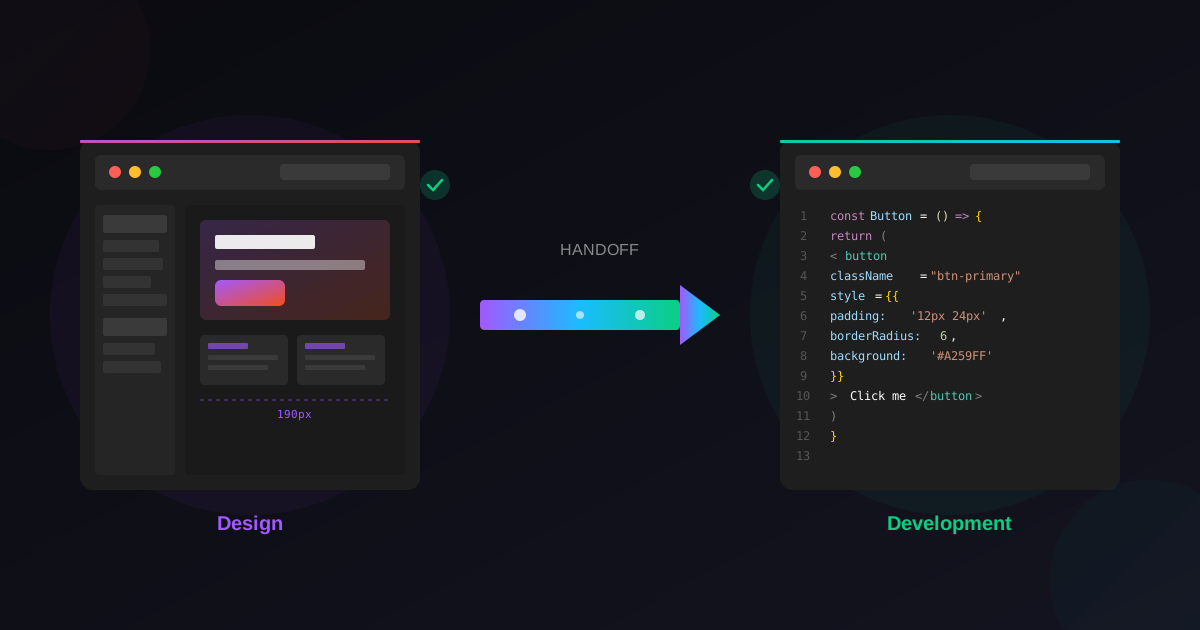
The handoff moment is where good designs go to die. I'm not being dramatic—I've watched it happen too many times. You spend weeks crafting pixel-perfect interfaces, obsessing over every spacing relationship and interaction detail.
Then you send the file to development, cross your fingers, and somehow the final product looks nothing like what you designed.
Sound familiar? Here's the thing, most designers don't want to hear: the problem usually isn't the developers. It's the design file itself. Most handoff failures can be traced back to unclear specifications, disorganized processes, or missing information that seemed obvious to you. Trust me—it wasn't obvious to anyone else.
Why Most Handoffs Fail
Designers and developers think differently about interfaces. Designers see visual relationships, aesthetic choices, and emotional impact. Developers see components, state logic, and data flows. Neither perspective is wrong, but they require translation.
When that translation doesn't happen explicitly in the design file, developers improvise. They make assumptions about spacing values, guess at interaction behaviors, and interpret ambiguous edge cases; however seems reasonable.
These small improvisations accumulate. By launch, the implemented product has drifted significantly from design intent.
The solution isn't more meetings or longer specification documents. It's building handoff-ready practices directly into your design workflow so the information developers need is already present when they open the file.
Structuring Files Developers Actually Appreciate
File organization isn't about making things pretty. It's about making things findable. When a developer needs to locate the hover state for a specific button variant, the path to that information should be obvious. Every layer of confusion adds friction that slows implementation and increases errors.
Start with a clear page hierarchy. Separate components, page designs, prototypes, and archived iterations into distinct pages. Name pages explicitly rather than accepting Figma's default "Page 1" conventions. Developers who open your file cold should understand the structure immediately.
Within pages, frame organization matters equally. Group related elements logically. Use section labels or dividers to create a visual hierarchy in the canvas. The layers panel should read almost like documentation, with naming that describes purpose rather than just visual appearance.
Naming Conventions That Scale
Vague names create real problems. When a developer sees "Group 47" or "Rectangle 89" in inspected code, they have no context for what that element represents semantically. Component names should describe function and variant status clearly.
Establish naming patterns and apply them consistently. For buttons: "btn-primary-large" or "button/primary/large" depending on your preferred structure. For icons: "icon-arrow-right" or similar descriptive identifiers. The specific convention matters less than consistent application across the entire file.
Variants need especially clear naming. A button with hover, pressed, disabled, and focus states should label each state unambiguously. When developers reference your file to implement interactions, they shouldn't need to guess which frame represents which state.
Auto-Layout: Not Optional for Handoff
Auto-layout isn't just a convenience feature. It's the difference between designs that communicate responsive behavior and designs that don't.
Without auto-layout, developers receive static snapshots that reveal nothing about how elements should reflow at different sizes.
Proper auto-layout usage tells developers which elements stretch, which maintain fixed dimensions, and how spacing should behave as containers resize. This information is critical for responsive implementation. Designs without auto-layout force developers to make assumptions you might disagree with.
Nested auto-layout becomes especially important for complex components. A card with header, content, and footer sections should use auto-layout at each level, demonstrating how internal elements relate spatially.
Using Dev Mode Effectively
Figma's Dev Mode exists specifically for handoff. Using it correctly transforms the inspection experience for developers. But many designers never enter Dev Mode themselves, which means they don't optimize their files for how developers will actually consume them.
Spend time in Dev Mode reviewing your own files. Notice what information appears automatically and what requires additional annotation. Check whether your spacing values make sense as inspectable numbers. Verify that component structures translate clearly when viewed through the development lens.
Code snippet generation varies in usefulness depending on your stack, but the visual inspection tools help regardless.
Color values, typography specs, and spacing measurements all appear in formats developers can use directly. Your job is ensuring those extracted values reflect intentional design decisions rather than accidental artifacts.
Reducing Back-and-Forth Communication
Every question a developer asks about your design file represents information that wasn't clear enough. Track these questions. They reveal gaps in your handoff process that affect every project.
Common confusion points become checklist items. If developers repeatedly ask about responsive breakpoint behavior, add explicit breakpoint documentation to your standard deliverables. If hover states regularly need clarification, develop more thorough state demonstration conventions.
The goal isn't eliminating communication—collaboration requires dialogue. The goal is to eliminate redundant communication about information that should have been obvious from the file itself. Save your interaction time for substantive creative discussions rather than specification clarification.
Frequently Asked Questions
How much documentation is too much?
If developers consistently findthe information they need without asking, you've hit the right level. Over-documentation wastes your time. Under-documentation wastes theirs. Track questions to calibrate.
Should designers learn to code for better handoff?
Basic understanding helps, but expertise isn't necessary. Knowing enough to understand implementation constraints improves communication. You don't need to write production code.
What if developers ignore our design files?
Investigate why. Often it's because the files are disorganized or hard to navigate. Sometimes it's process issues beyond design quality. Direct conversation usually reveals fixable problems.
How do I handle design changes after handoff?
Version clearly and communicate explicitly. Create new frames for revisions rather than overwriting. Developers need to understand what changed without diff-checking entire files.
Do templates help with handoff quality?
Quality templates model good structure. Well-built templates demonstrate component organization, naming conventions, and auto-layout usage that designers can learn from and developers can inspect confidently.
Better structure means smoother handoffs. Wonderlist templates are built with clean component architecture, consistent naming, and proper auto-layout—ready for inspection and implementation from day one.
Related Reading
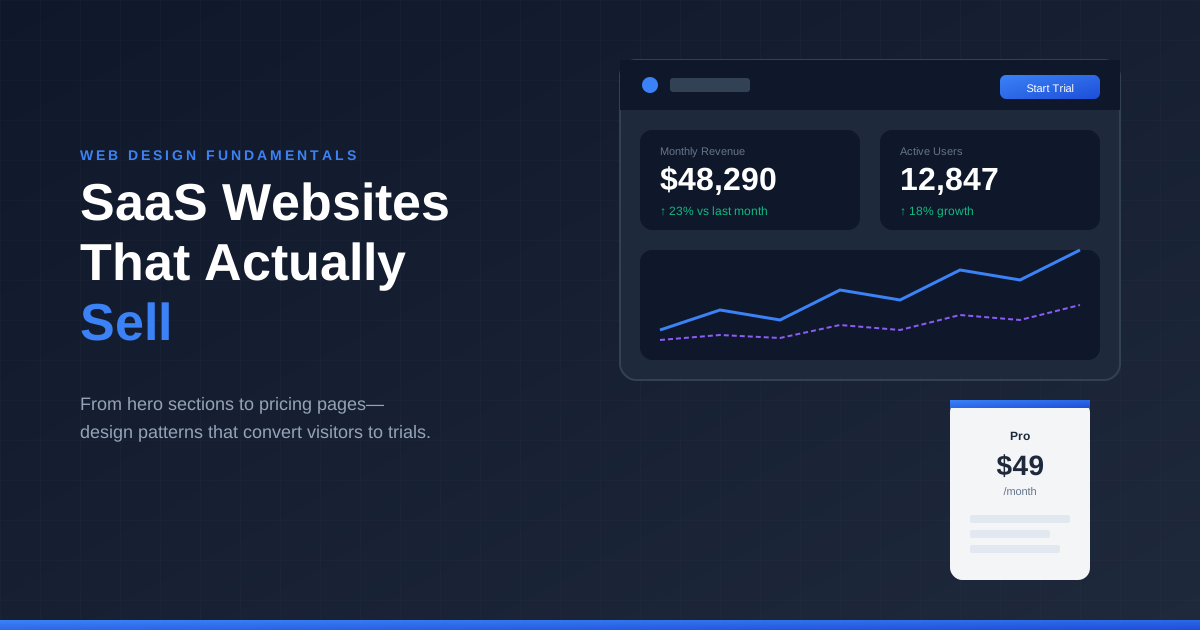
Smooth the handoff further with our roundup of essential Figma plugins, see these principles applied in designing SaaS websites that sell, or start from a base using ready-made Figma templates.
Latest Insights
Other Insights
Dive into our blog to discover insightful articles covering a variety of topics tailored for SaaS platforms.




Design By OwlsTech Service
